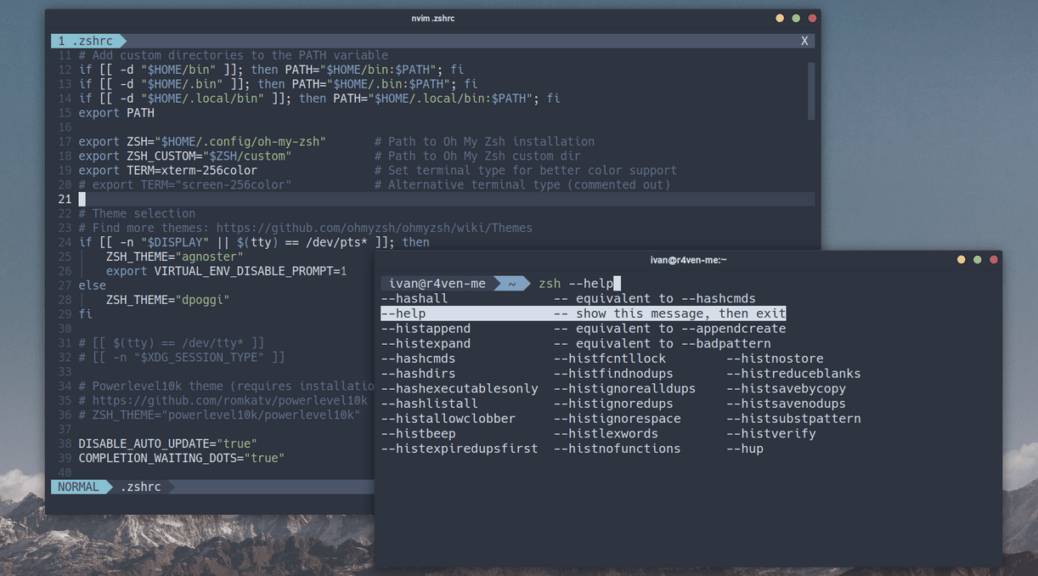
Today we will look at the process of configuring the popular command shell ZSH⚙️ through the environment loading file .zshrc📝 when using the oh-my-zsh framework.
🖐️Эй!
Subscribe to our Telegram channel @r4ven_me📱, so you don’t miss new posts on the website 😉. If you have questions or just want to chat about the topic, feel free to join the Raven chat at @r4ven_me_chat🧐.

The demonstration presented in this article was performed in the environment of the Linux Mint 22🌱 distribution (Ubuntu 24🦍). Similarly, everything will work in other popular Linux distributions☝️.
Let’s go🏎.
TLDR
# install necessary utilities
sudo apt update && sudo apt install -y git curl zsh

# for a "colorful" terminal, install bat, exa, and grc
sudo apt install -y bat exa fzf grc || sudo apt install -y bat eza fzf grc

# backup existing .zshrc
[[ -f ~/.zshrc ]] && mv -v ~/.zshrc{,_backup}

# download ready-made .zshrc
curl -fsSL --output ~/.zshrc \
    https://raw.githubusercontent.com/r4ven-me/zshrc/main/.zshrc

# change default shell
[[ $SHELL == *zsh ]] || chsh -s /usr/bin/zsh

# apply changes for the current session
exec zshForeword
If you spend a lot of time in the Linux console/terminal🧑💻, you’ve probably heard about tools that simplify interaction with the command line and take the “user experience” to a “new level”🤔. One such tool is the ZSH shell and the oh-my-zsh🔥 framework created by skilled developers for its simple and convenient configuration.
Previously, I spent quite a lot of time bringing my shell to what I considered “ideal” or close to it🫠.
Below I will provide a detailed description of my ZSH configuration in the .zshrc file✍️, so you understand why you need it.
After that, I’ll show (a ridiculously simple🤷♂️) way to install and apply this configuration. All external dependencies, such as oh-my-zsh itself and additional plugins, will be installed automatically🦾 on the first launch of ZSH.
💡 The manual installation process of ZSH + oh-my-zsh is described in a separate article.
.zshrc Configuration Description
This section provides a block-by-block🧱 description of what this .zshrc configuration changes/adds to the ZSH shell’s behavior.
GENERAL SETTINGS🛠
- Adding user directories
bin,.bin,.local/binto thePATHvariable to simplify access to user scripts; - setting environment variables for
oh-my-zsh(ZSH,ZSH_CUSTOM) and correct terminal color support (TERM); - choosing the shell theme depending on the environment:
agnoster-r4ven— for GUI and pseudo-terminal sessions (PTS);dpoggi(without icons) — for console sessions (TTY);- disabling automatic
oh-my-zshupdates (manual update command:omz update); - command history configuration:
- storing up to 10,000 commands;
- adding timestamps in
yyyy-mm-ddformat; - ignoring duplicate entries and commands starting with a space;
- shared history between terminal sessions🔥.
PLUGINS🗃
The following plugins are used to improve shell interaction:
fzf— search through command history using thefzf --exactutility viaCtrl+r;git— aliases and utilities for working with Git;sudo— quickly execute the last/current command with sudo by double-tappingEsc;docker,kubectl— auxiliary commands for Docker and Kubernetes;cmdtime— measures command execution time (displayed at the end of the last line);zsh-autopair— automatic closing of parentheses and quotes during command input;zsh-completions— extended autocompletion viaTab, including subcommands and command flags;zsh-autosuggestions— highlighted suggestions based on command history;fast-syntax-highlighting— command syntax highlighting;history-substring-search— search history by typing part of the command using theup/downarrows.
A few examples of usage:
Ctrl+r— invokesfzfto search for a command from history;- when typing part of a command, press
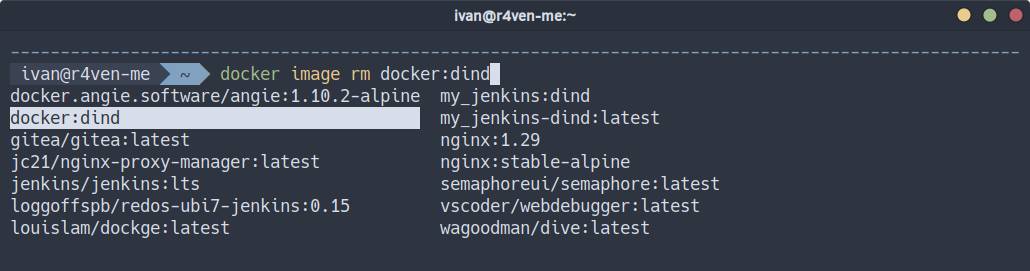
Tabfor extended autocompletion (subcommands, filenames, or command options); - when typing part of a command, press
upto find similar commands from history.
APPLICATIONS AND UTILITIES🧑💻
- Aliases are installed to simplify frequently used commands:
python->python3;- quick ping of Google’s DNS server with command
p8, output highlighting foripcommand; - default editor selection (
nvimorvim) + convenient aliases; - setting the
Nordcolor palette for thefzfutility; - using
bat/batcatas a replacement forcat,less,man,--help, andtail -fwithNordtheme color highlighting; - replacing the
lscommand withexa/ezawith improved display options (long list, tree output, sorting).
For more details on bat and exa, see the article: bat, exa – syntax highlighting of standard output in Linux terminal (cat, less, tail and ls).
AUTOMATIC INSTALLATION🦾
When the shell starts, it automatically checks and installs oh-my-zsh and missing plugins (zsh-autopair, zsh-completions, zsh-autosuggestions, fast-syntax-highlighting).
QUICK CALL FUNCTION FOR CUSTOM COMMANDS — cmd
What the function does:
- contains an array of short command keys, whose values are often complex commands;
- displays the entire list of available commands using the
-hkey; - allows for interactivity by cycling through options using the
Tabkey; - after pressing Enter, the command is not executed, but entered as the next command without execution, so it can be edited if necessary.
How such a command/function works:

You only need to fill the cmd_list array with your commands, in the format:
short_name "long_command"Shell-sensitive special characters used in complex commands need to be escaped. In some cases with quotes, in others with a backslash. Example:
\$
SHELL PROMPT👋
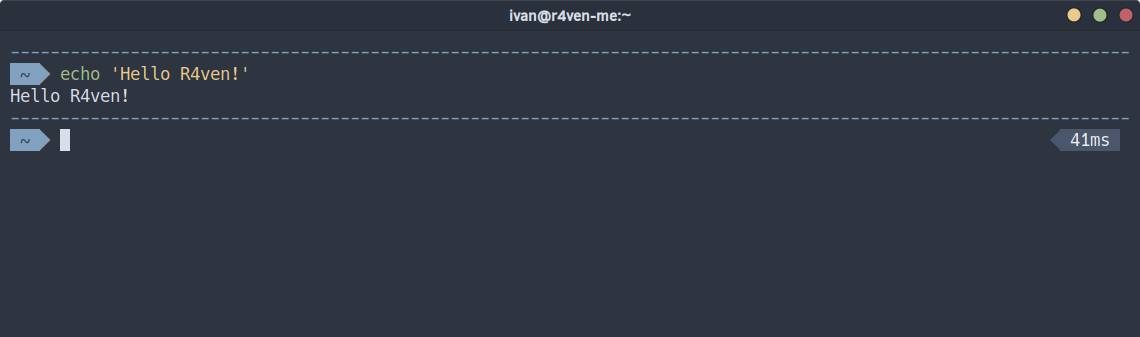
The user@host display has been removed from the shell prompt if a graphical environment is used.
Demo of my configuration
Tab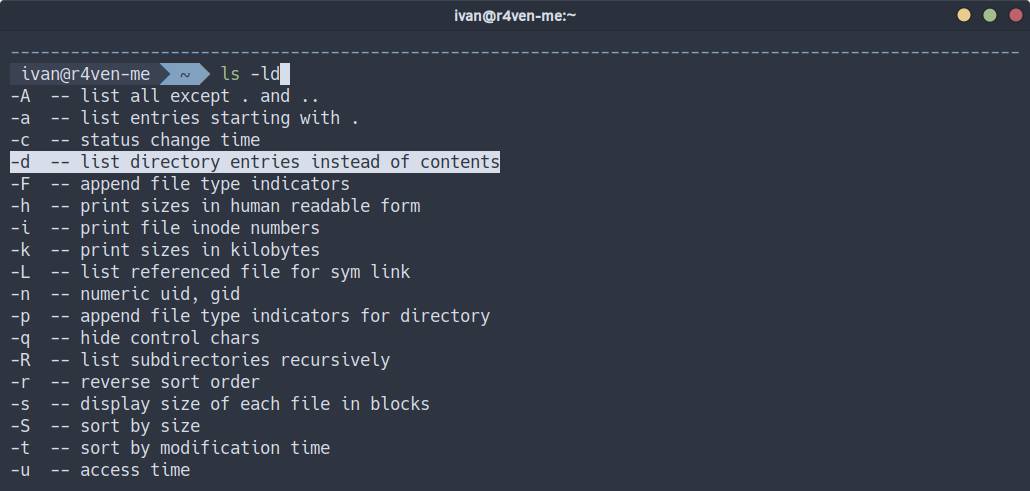
Ctrl+r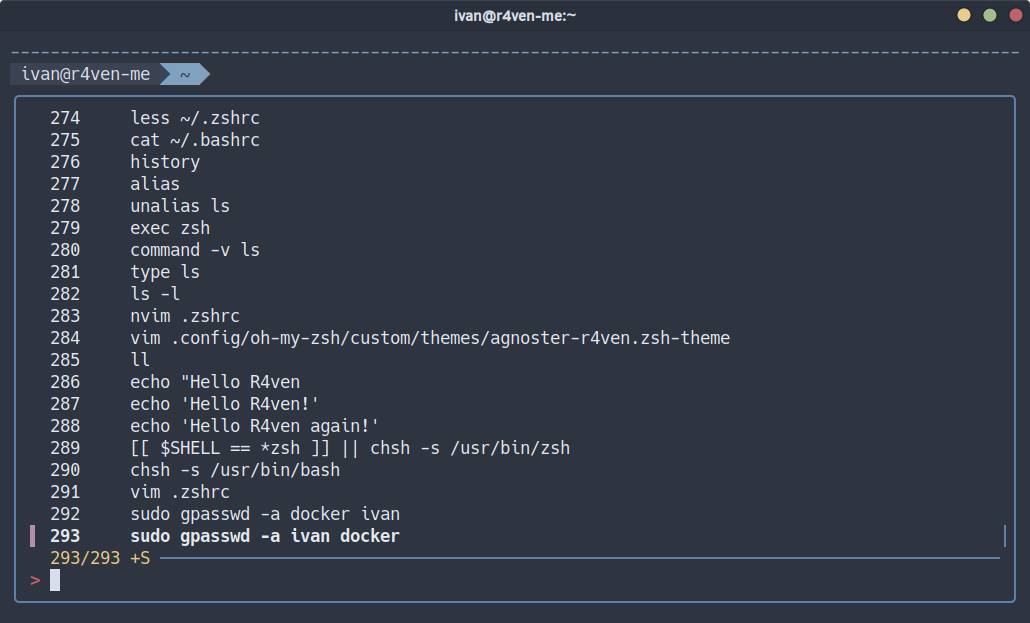
history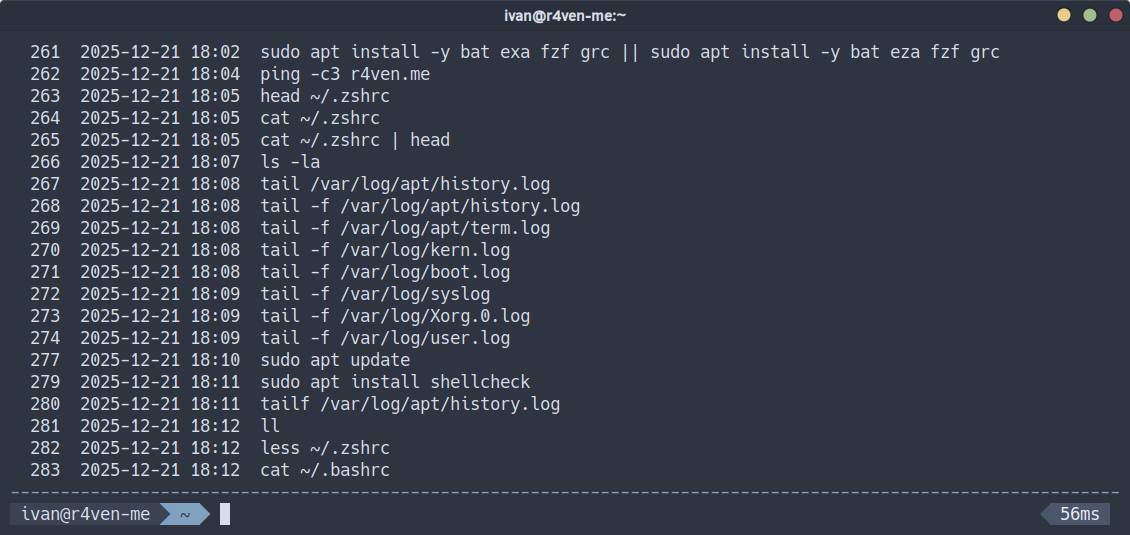
--help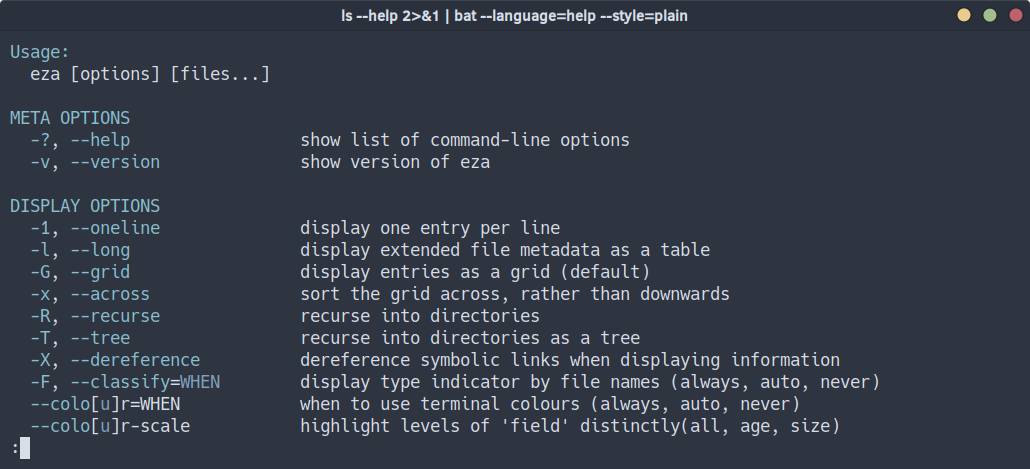
cat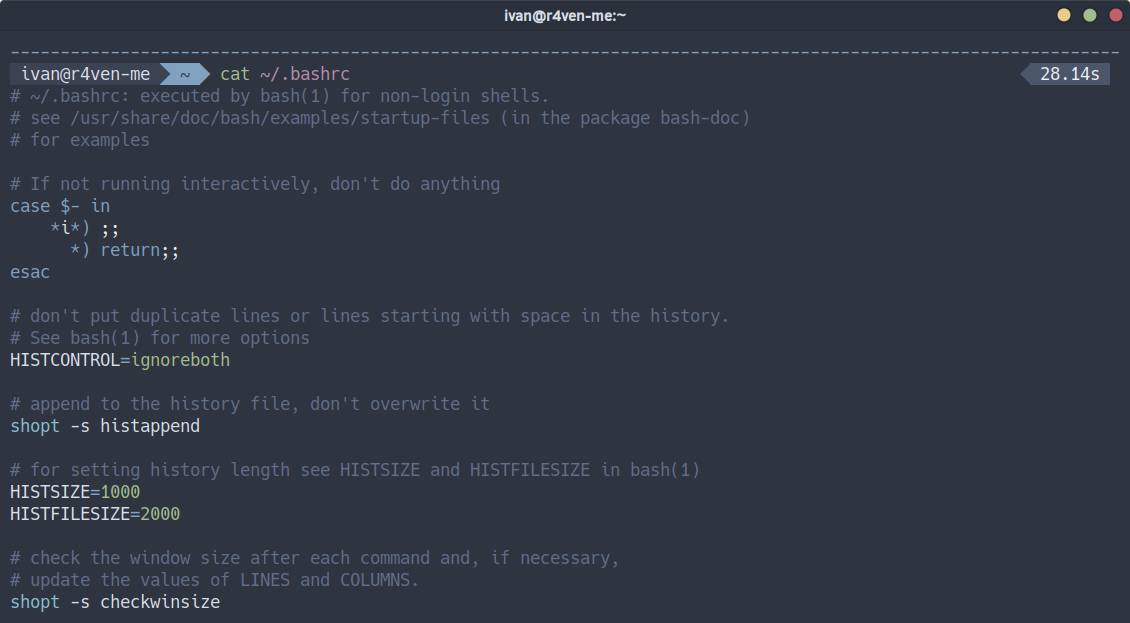
less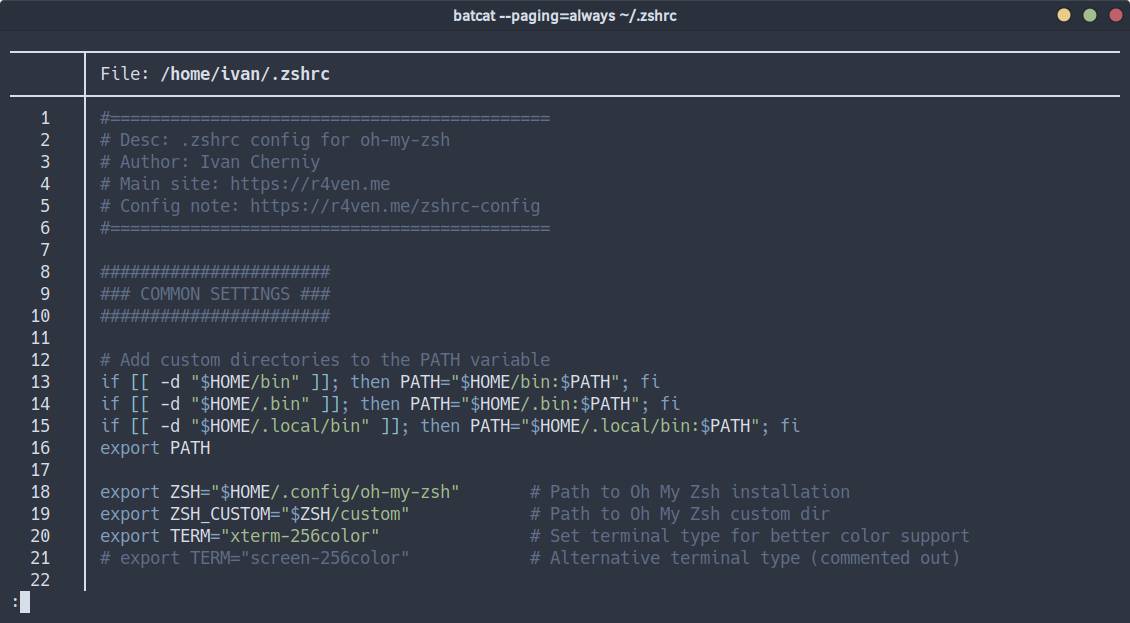
tail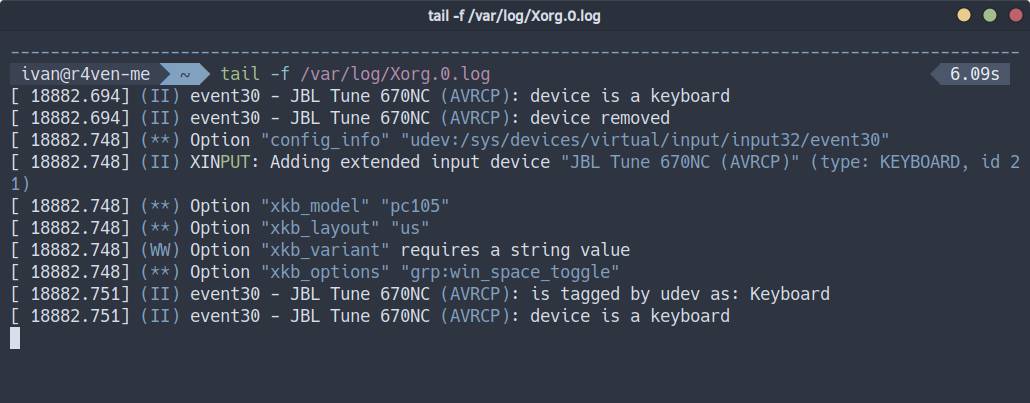
tailf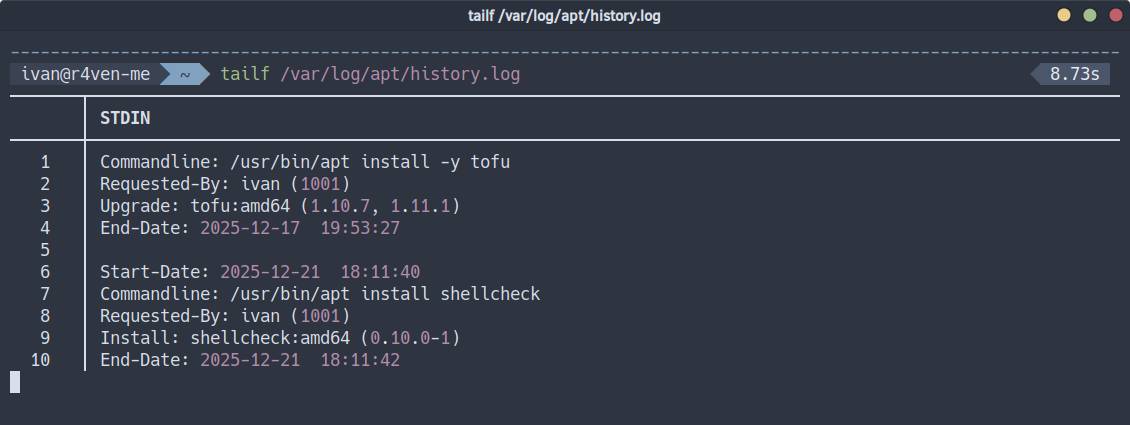
ls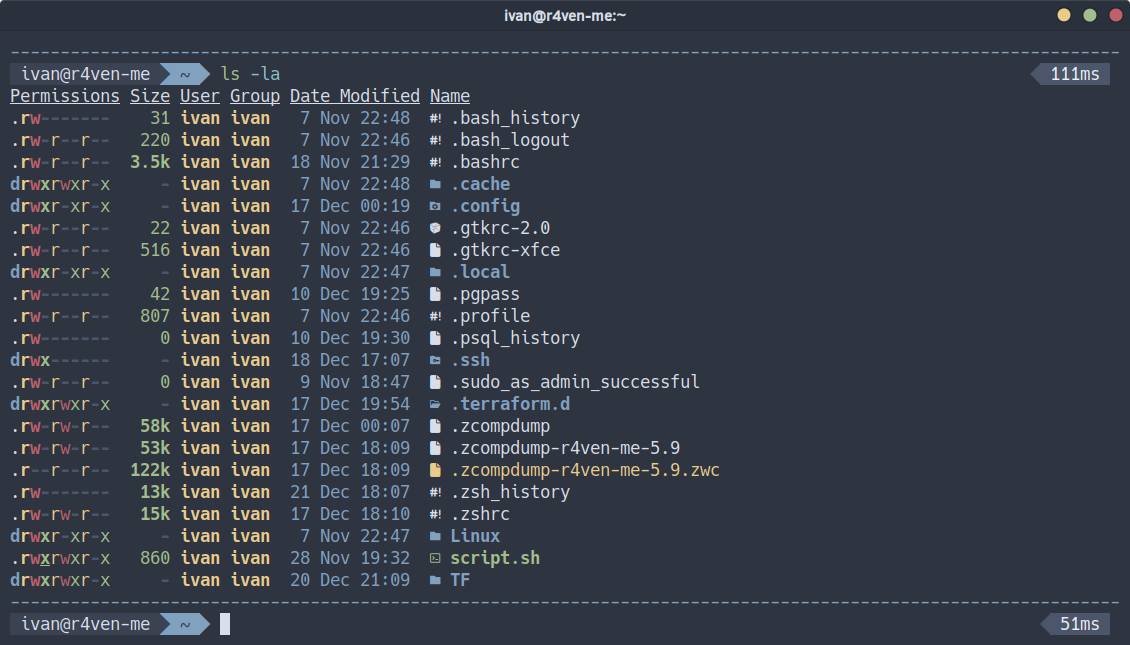
ss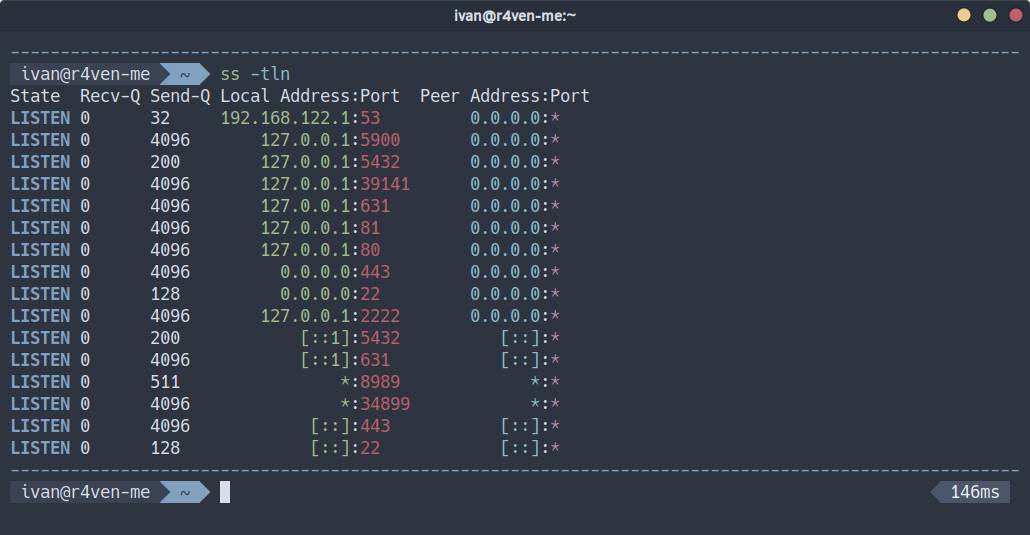
ping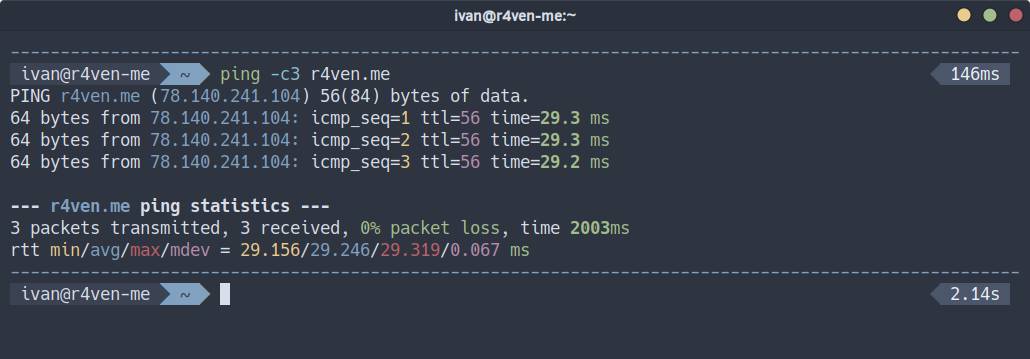
journalctl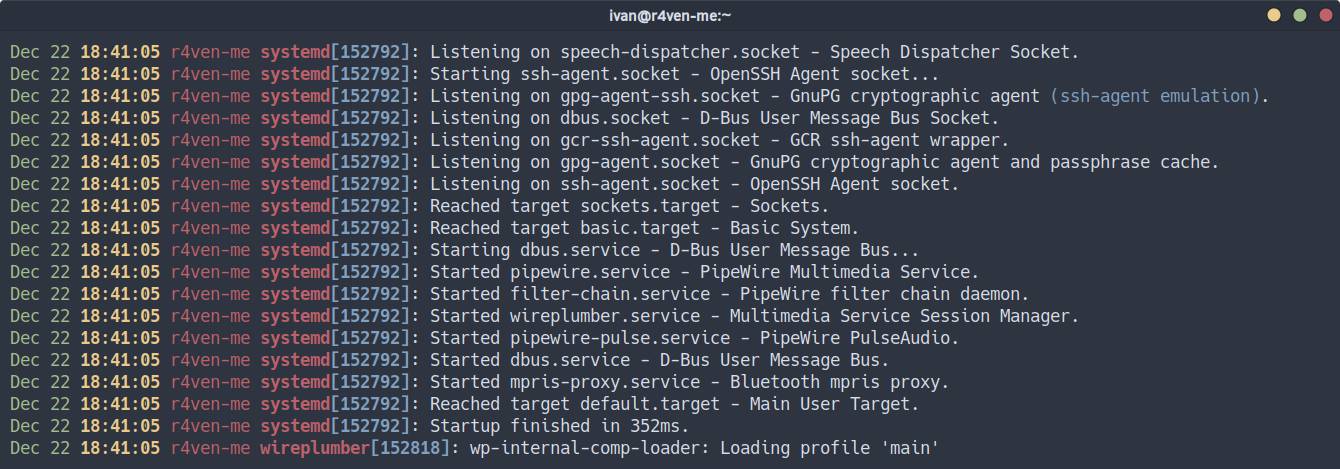
docker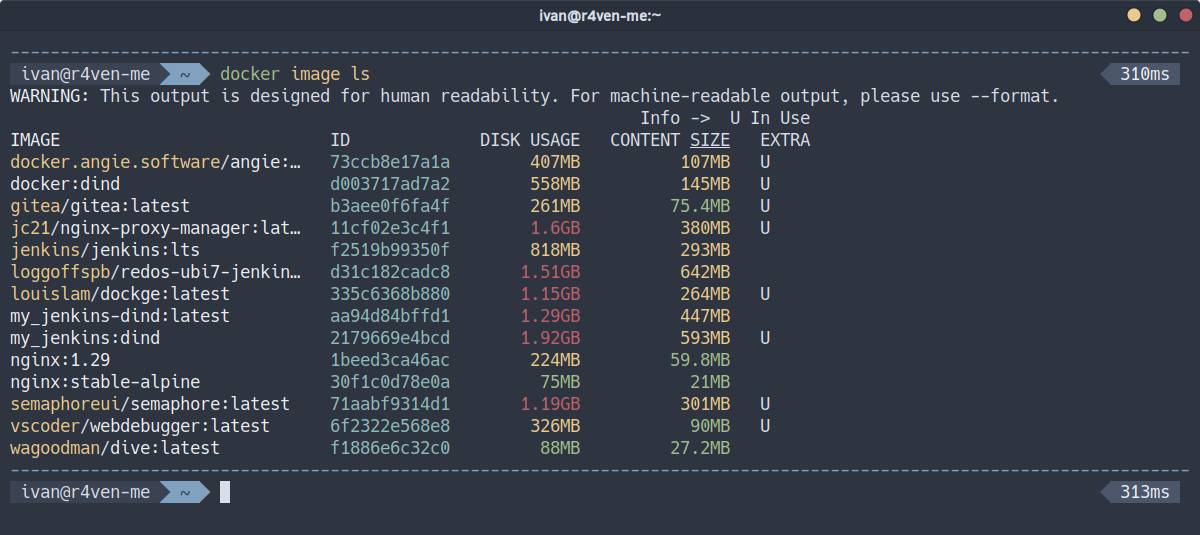
Convenient access to custom complex commands via the universal cmd function:
And much more. Now let’s move on to preparation and installation.
Preparation
Installing necessary packages
First, we need to install the zsh shell itself, the curl utility for web interaction, and the git version control system:
sudo apt update && sudo apt install -y git curl zshAlso (optionally), I recommend installing utilities for terminal output highlighting and convenient searching:
sudo apt install -y bat exa fzf grc || sudo apt install -y bat eza fzf grcInstalling a powerline font for GUI sessions
For correct icon rendering in your terminal during a graphical session, you need to use a special monospace icon powerline font🤯, for example, from the Nerd fonts project.
My readers know that I prefer the Hack font ☝️. Here’s a simple example of how to install it:
📝 Note
Please note that sudo rights are required to execute these commands. Alternatively, install fonts only for the current user in the ~/.local/share/fonts directory.
# create font directory
sudo mkdir /usr/share/fonts/Hack

# download font archive
curl -fsSLO \
    $(curl -s https://api.github.com/repos/ryanoasis/nerd-fonts/releases/latest \
    | grep browser_download_url \
    | grep 'Hack.zip' \
    | cut -d  '"' -f 4)

# unpack archive, copy fonts to system
sudo unzip ./Hack.zip -d /usr/share/fonts/Hack/ && rm -f ./Hack.zip📝 Note
The curl command uses a command-line substitution mechanism. That is, the main download command: curl -fsSLO is passed an argument, which is the result of executing another command within the $(command) construct, performed beforehand. As a result, the main command will receive a direct URL to the zip file of the latest Hack font release from GitHub. The command is universal.

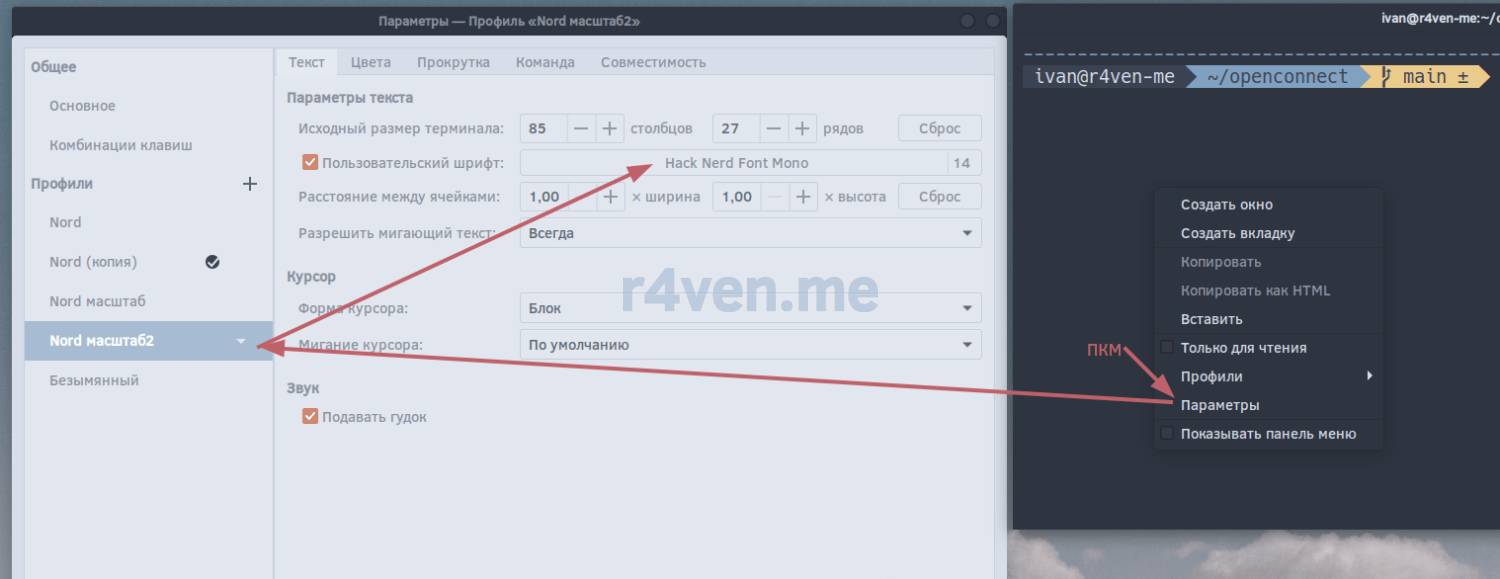
After installing the font, activate it in your terminal settings🛠.
In Gnome-terminal, this is done as follows:
Applying the .zshrc configuration
Back up the current .zshrc, if it exists:
# backup current .zshrc
[[ -f ~/.zshrc ]] && mv -v ~/.zshrc{,_backup}Create a new .zshrc in any convenient editor:
vim ~/.zshrcAnd populate it:
#======================================================
# Description: .zshrc configuration for oh-my-zsh
# Author: Ivan Cherniy
# Main website: https://r4ven.me
# Configuration note: https://r4ven.me/zshrc-config
#======================================================

#============================================
#             GENERAL SETTINGS
#============================================

# Add user directories to the PATH variable
if [[ -d "$HOME/bin" ]]; then PATH="$HOME/bin:$PATH"; fi
if [[ -d "$HOME/.bin" ]]; then PATH="$HOME/.bin:$PATH"; fi
if [[ -d "$HOME/.local/bin" ]]; then PATH="$HOME/.local/bin:$PATH"; fi
export PATH

export ZSH="$HOME/.config/oh-my-zsh"       # Path to Oh My Zsh installation
export ZSH_CUSTOM="$ZSH/custom"            # Path to Oh My Zsh custom directory
export TERM="xterm-256color"               # Set terminal type for better color support
# export TERM="screen-256color"             # Alternative terminal type (commented out)

have() {
    local utils=("$@")
    for util in "${utils[@]}"; do
        if ! command -v "$util" &> /dev/null; then return 1; fi
    done
    return 0
}

cmd_alias() {
  local cmd="$1"
  shift
  local replacement=( "$@" )
  if alias "$cmd" &> /dev/null; then unalias "$cmd"; fi
  if functions "$cmd" &> /dev/null; then unset -f "$cmd"; fi
  eval "$cmd() { command ${replacement[@]} \"\$@\"; }"
}

# Automatic installation of oh-my-zsh framework
if [[  ! -d "$ZSH" ]] && have "git"; then
    git clone https://github.com/ohmyzsh/ohmyzsh.git "$ZSH"
fi

# Oh-my-zsh theme selection
# More themes can be found here: https://github.com/ohmyzsh/ohmyzsh/wiki/Themes
if [[ -n "$DISPLAY" || $(tty) == /dev/pts* ]] && have "curl"; then
    R4VEN_THEME="agnoster-r4ven.zsh-theme"
    if [[ ! -f "${ZSH_CUSTOM}/themes/${R4VEN_THEME}" ]]; then
        curl \
            --fail \
            --location \
            --show-error \
            --output "${ZSH_CUSTOM}"/themes/"${R4VEN_THEME}" \
            https://raw.githubusercontent.com/r4ven-me/zshrc/main/"${R4VEN_THEME}"
    fi
    # DASHES_COLOR=004
    DASHES_COLOR="blue"
    TIMER_FORMAT="%d"
    TIMER_THRESHOLD=0
    ZSH_THEME="${R4VEN_THEME%%.*}"         # Use this theme in graphical mode
    export VIRTUAL_ENV_DISABLE_PROMPT=1    # Disable standard virtualenv prompt
else
    ZSH_THEME="dpoggi"                     # Use 'noicon' theme in other cases, e.g., in console (tty)
fi

# Powerlevel10k theme (installation required)
# https://github.com/romkatv/powerlevel10k
# ZSH_THEME="powerlevel10k/powerlevel10k"

DISABLE_AUTO_UPDATE="true"                  # Disable automatic updates for Oh My Zsh (command: omz update)
COMPLETION_WAITING_DOTS="true"              # Show dots during command autocompletion

# Command history configuration
HIST_STAMPS="yyyy-mm-dd"                    # Add timestamp to command history
HISTFILE=~/.zsh_history                     # File to save history
HISTSIZE=10000                              # Maximum number of history entries in memory
SAVEHIST=10000                              # Maximum number of history entries to save to file
setopt hist_ignore_all_dups                 # Ignore duplicate entries in history
setopt share_history                        # Share history between sessions
setopt histignorespace                      # Ignore commands starting with a space

# Enable vi mode for the command line (emacs mode by default)
# set -o vi

#============================================
#                  PLUGINS
#============================================

plugins=(
    fzf                        # Integration with Fuzzy finder (Ctrl+r)
    git                        # Git aliases and functions
    sudo                       # Run/repeat last command with sudo (double Esc)
    docker                     # Docker command-line helper
    kubectl                    # Kubernetes command-line helper
    # zsh-autopair               # Automatic closing of parentheses and quotes
    zsh-completions            # Additional autocompletion scripts (Tab)
    zsh-autosuggestions        # Command suggestions based on history
    fast-syntax-highlighting   # Syntax highlighting for commands
    history-substring-search   # Search history by substring (up/down arrows)
)

# zsh-autopair: disable this plugin in MidnightCommander
# if ! [[ $(ps -o comm -h $PPID) =~ "^mc" ]]; then
#     plugins+=(zsh-autopair)
# fi

# Automatic installation of selected plugins
if [[ -d "$ZSH_CUSTOM" ]] && have "git"; then
    if [[ ! -d "${ZSH_CUSTOM}"/plugins/zsh-autopair ]]; then
        git clone https://github.com/hlissner/zsh-autopair \
            "${ZSH_CUSTOM}"/plugins/zsh-autopair
    fi

    if [[ ! -d "${ZSH_CUSTOM}"/plugins/zsh-completions ]]; then
        git clone https://github.com/zsh-users/zsh-completions \
            "${ZSH_CUSTOM}"/plugins/zsh-completions
    fi

    if [[ ! -d "${ZSH_CUSTOM}"/plugins/zsh-autosuggestions ]]; then
        git clone https://github.com/zsh-users/zsh-autosuggestions \
            "${ZSH_CUSTOM}"/plugins/zsh-autosuggestions
    fi

    if [[ ! -d "${ZSH_CUSTOM}"/plugins/fast-syntax-highlighting ]]; then
        git clone https://github.com/zdharma-continuum/fast-syntax-highlighting \
            "${ZSH_CUSTOM}"/plugins/fast-syntax-highlighting

        reset
    fi
fi

#============================================
#              OH-MY-ZSH INITIALIZATION
#============================================

source "${ZSH}"/oh-my-zsh.sh                # Initialize Oh My Zsh framework

autoload -Uz compinit && compinit           # Initialize and enable autocompletion system

if [[ -r "${HOME}"/.profile ]]; then
    source "${HOME}"/.profile               # Load '.profile' if it exists
fi

#============================================
#              APPLICATIONS AND UTILITIES
#============================================

# Python
cmd_alias "python" "python3"

# Network
cmd_alias "p8" "ping" "-c3" "8.8.8.8"
cmd_alias "ip" "ip" "--color"

# Text editor settings
if have "nvim"; then
    export EDITOR="$(command -v nvim)"
    export VISUAL="$(command -v nvim)"
    alias vim="nvim"
    alias n="nvim"
    alias N="sudo nvim"
elif have "vim"; then
    export EDITOR="$(command -v vim)"
    export VISUAL="$(command -v vim)"
    alias v="vim"
    alias V="sudo vim"
fi

# FZF configuration with Nord theme colors
if have "fzf"; then
    export FZF_DEFAULT_OPTS="--exact"
    export FZF_DEFAULT_OPTS=$FZF_DEFAULT_OPTS'
        --color=fg:#e5e9f0,bg:#2e3440,hl:#81a1c1
        --color=fg+:#e5e9f0,bg+:#2e3440,hl+:#81a1c1
        --color=info:#eacb8a,prompt:#bf6069,pointer:#b48dac
        --color=marker:#a3be8b,spinner:#b48dac,header:#a3be8b
        --color=border:#5e81ac
        --border=rounded
    '
fi

# Defining a variable with the name of the utility: bat or batcat
# if have "batcat"; then cmd_alias "bat" "batcat"; fi
if have "batcat"; then bat="batcat"; else bat="bat" fi

# Usage bat instead of cat, less, man, --help, tail -f
# See more: https://r4ven.me/bat-exa-config
if have "$bat"; then
    export COLORTERM="truecolor"
    export BAT_THEME="Nord"
    export MANPAGER="sh -c 'col -bx | $bat --language=man --style=plain'"  # Command to view man pages
    export MANROFFOPT="-c"  # Disabling line wrapping in man
    cmd_alias "cat" "$bat" "--style=plain" "--paging=never"
    cmd_alias "less" "$bat" "--paging=always"
    if [[ $SHELL == *zsh ]]; then # global alias "--help" if zsh
        alias -g -- --help='--help 2>&1 | "$bat" --language=help --style=plain'
    fi
    help() { "$@" --help 2>&1 | "$bat" --language=help --style=plain; }
    tailf() { tail -f "$@" | "$bat" --paging=never --language=log; }
    batdiff() { git diff --name-only --relative --diff-filter=d | xargs "$bat" --diff; }
fi

# Use exa instead of ls
# More details: https://r4ven.me/bat-exa-config
if have "exa"; then
    if [[ -n "$DISPLAY" || $(tty) == /dev/pts* ]]; then # display icons if pseudo-terminal
        cmd_alias "ls" "exa" "--group" "--header" "--icons" "--time-style=long-iso"
    else
        cmd_alias "ls" "exa" "--group" "--header" "--time-style=long-iso"
    fi
    alias l="ls"
    alias ll="ls --long"
    alias lll="ls --long --all"
    alias llll="ls -lbHigUmuSa --sort=modified --time-style=long-iso"
    alias lm="ls --long --all --sort=modified"
    alias lt="ls --tree"
    alias lr="ls --recurse"
    alias lg="ls --long --git --sort=modified"
fi

# Highlight output of various commands
if have "grc" && tty -s && [[ -n "$TERM" && "$TERM" != dumb ]]; then
    GRC_UTILS=(
        configure ping traceroute gcc make netstat stat ss diff
        wdiff last who cvs mount findmnt mtr ps dig ifconfig
        df du env systemctl iptables lspci lsblk lsof blkid
        id iostat sar fdisk free docker journalctl kubectl
        sensors sysctl tail head tcpdump tune2fs lsmod lsattr
        semanage getsebool ulimit vmstat dnf nmap uptime w
        getfacl ntpdate showmount apache iwconfig lolcat whois
        go sockstat
        #ls ip
    )
    for cmd in "${GRC_UTILS[@]}"; do
        if have "$cmd"; then
            cmd_alias "$cmd" "grc" "--stderr" "--stdout" "$cmd"
        fi
    done
fi

# APT
if have "apt"; then
    alias AU="sudo apt update"
    alias AUP="sudo apt upgrade"
    alias AR="sudo apt autoremove"
    alias AI="sudo apt install"
    alias AUI="sudo apt update && sudo apt install"
fi

# Ansible
if have "ansible"; then
    AP() { ansible-playbook ~/ansible/playbooks/"$@"; }
    alias AC="ansible-console"
fi

# Tmux
if have "tmux"; then
    alias T="tmux attach -t Work || tmux new -s Work"
    alias TT="sudo tmux attach -t Work! || sudo tmux new -s Work!"
fi

# ShellGPT
if have "sgpt"; then
    export LITELLM_LOG="ERROR"
    G() { sgpt --chat temp "$*"; }
    GS() { sgpt --shell "$*"; }
    GC() {
        echo ""
        sgpt --code --no-md "$*" | "$bat" --language=sh --paging=never --style=plain
        echo ""
    }
    alias GG="sgpt --repl temp"
fi

# Defines the 'cmd' function, which executes custom commands from a list
# It takes one argument - the command name and inserts it into the command line
# Use the TAB key for suggestions
cmd() {
    local cmd_name="${1}"
    typeset -A cmd_list

    # Associative array to store the list of commands
    # Keys are command names, values are the commands themselves
    cmd_list=(
        ps_top5_cpu "ps --sort=-%cpu -eo user,pid,ppid,state,comm | head -n6"
        ps_top5_mem "ps --sort=-%mem -eo user,pid,ppid,state,comm | head -n6"
        ps_zombie "ps -eo user,pid,ppid,state,comm | awk '\$4=="Z" {print \$3}'"
        cron_add_task '{ crontab -l; echo "0 3 * * 0 ls -l &> dirs.txt"; } | crontab -'
        du_top20 'du -x -h / 2> /dev/null | sort -rh | head -n 20'
        df_80 "df -h | awk '\$5 ~ /^8[0-9]%/ {print $6}'"
        git_init 'git init --initial-branch=main && git remote add origin ssh://git@github.com/r4ven-me/reponame.git'
        journal_vacuum 'journalctl --vacuum-size=800M'
        lsof_opened 'lsof +D /opt'
    )

    # Check if the command exists in the array, or if help is requested
    if [[ -z ${cmd_list[$cmd_name]} || -z "$cmd_name" || "$cmd_name" == "-h" ]]; then
        # Display the list of available commands
        echo "AVAILABLE COMMANDS:\n"
        printf "%-20s %s\n" "Key" "Command"
        echo "----------------------------"
        # Iterate through all keys in the array and display them
        for key in "${(@k)cmd_list}"; do
            printf "%-20s %s\n" "$key" "${cmd_list[$key]}"
            # echo "------------------"
        done | sort
        return 0
    else
        # If the command is found, insert it into the command line
        print -zr "${cmd_list[$cmd_name]}"
        return 0
    fi
}

# Function for command autocompletion
_cmd_completion() {
    local -a keys
    keys=($(cmd -h | awk 'NR>4 {print $1}'))  # Extract keys from help output
    compadd "$@" -- "${keys[@]}"
}

# Register the autocompletion function for the `cmd` command
compdef _cmd_completion cmd

#============================================
#                  PROMPT
#============================================

# Remove user@host context from the prompt when DISPLAY is set
if [[ -n "$DISPLAY" && -z "$SSH_CONNECTION" ]]; then
    prompt_context() { }                    # Empty function to disable context
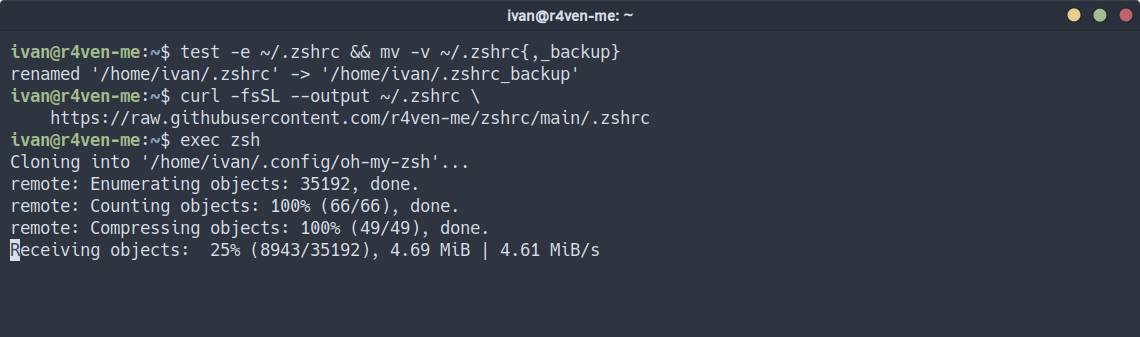
fiClose/save and launch zsh in the current session:
exec zshexec- replaces the current shell process (in this case, the shell itself) with the specified command, i.e.,zsh;
The process of downloading missing components to the ~/.config/oh-my-zsh directory will begin:
If you are in a graphical session, you will have a minimalistic prompt:
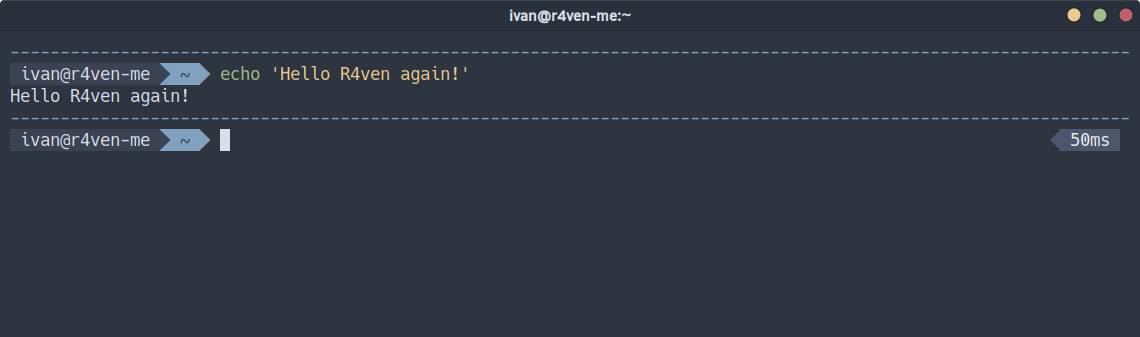
Otherwise, it will be like this:
The console session will use a theme without icons:

At this point, we have simply launched the zsh shell in the current session☝️. To make zsh your default shell (if it isn’t already), execute the command:
[[ $SHELL == *zsh ]] || chsh -s /usr/bin/zshCommand Description
[[ ... ]]- checks the condition inside;$SHELL- environment variable containing the path to the current shell (e.g.,/bin/bashor/usr/bin/zsh);== *zsh- checks if the value of the$SHELLvariable ends withzsh;||- executes the next command only if the previous one returned false (return code is not 0);chsh- command to change the user’s shell;-s /usr/bin/zsh- sets Zsh as the default shell for the current user.
Done. For the changes to apply correctly, it is recommended to log out of the current session and log back in🚶➡️.
Afterword
This time, we thoroughly examined how to configure the behavior of the ZSH shell in the .zshrc file when using the popular oh-my-zsh framework😌.
In my opinion, customizing one’s workspace (including the shell) significantly increases efficiency🧑💻. Unless, of course, one becomes fanatical about it😉. Many ignore this aspect, preferring default settings. I can’t say this is bad; it’s just that, with some experience, I’ve realized: it’s better to spend a little (or a lot) of time on setup👨🔧 and then simply use the resulting configuration wherever possible, thereby solving various tasks with greater convenience and fewer nerves😎.
For example, when typing a command in the terminal, you constantly forget (or don’t know🤷♂️) what flags it has and what they do. You have to interrupt your typing to look up the help. In the case of my configuration, for most popular commands, it’s enough to just press Tab to see a hint of the flags, which can also be “tabbed through”👌. This also includes the convenience of working with command history and so on😏.
Useful materials
- Config from the article on GitHub
- Official ZSH website
- Official oh-my-zsh website
- ZSH – Interactive Command Shell for Linux + Oh-My-Zsh
- bat, exa – syntax highlighting of standard output in Linux terminal (cat, less, tail and ls)
👨💻Ну и…
Don’t forget about our Telegram channel 📱 and chat 💬 All the best ✌️
That should be it. If not, check the logs 🙂